Metis Staging Upload
Overview
Site, borehole and sample data that have been project merged in Transform, and thus given identity in the Metis system, can be uploaded to the central Staging database. The upload step uses a wizard that helps to ensure data is not duplicated on the Staging database and that newly added analyses are merged with the correct existing samples and analyses.
Version: 3.0+ (Apr 2026)
Usage: Metis Tools --> Merge and Upload to Staging...
How to use in practice
In the project merge we bring together one or more candidate rows to create project site, project boreholes and project samples. Project sites and boreholes are shown in their list view, and project samples are just samples (rows) in the spreadsheet. You can tell whether a sample is a candidate sample by inspecting the Sam status.Metis property - an empty value implies a candidate sample, but if the string "Metis sample" is shown you are looking at a project sample.
Only project sites, boreholes and project samples will be considered for uploading to the Staging database. You must first select which Staging database to upload data to.
The Staging merge and upload proceeds somewhat differently to the project merge. In this case the aim is to find 'similar' sites, boreholes and samples on the Staging database, when comparing each project site, borehole and sample in the Transform project. The process works on sites then boreholes, and then on samples, similarly to the project merge.
Site merge and upload
Unlike Project Merge, the Staging merge does not allow you to select what properties are used to find potential matches, rather these are hard-coded in the merge algorithm.
The site merge works in the following manner:
- For each project site in Transform we look for 'matching' sites on the Staging database. Here matching is based on sites which are 'similar' on certain properties - for example the site name, or the site location (lat, long), or other site identifiers. An exhaustive list of the matching properties can be found here.
- For each matched site we calculate a matching score - this uses more properties to provide a numeric score in the range of 0 (no match) to 100 (identical). The scoring details can be found here.
- The matched sites are ranked, based on their score and up to the top 10 matches are returned. Typically only a small number of sites will be matched - only matched sites are scored, so you might only expect a small number to be returned.
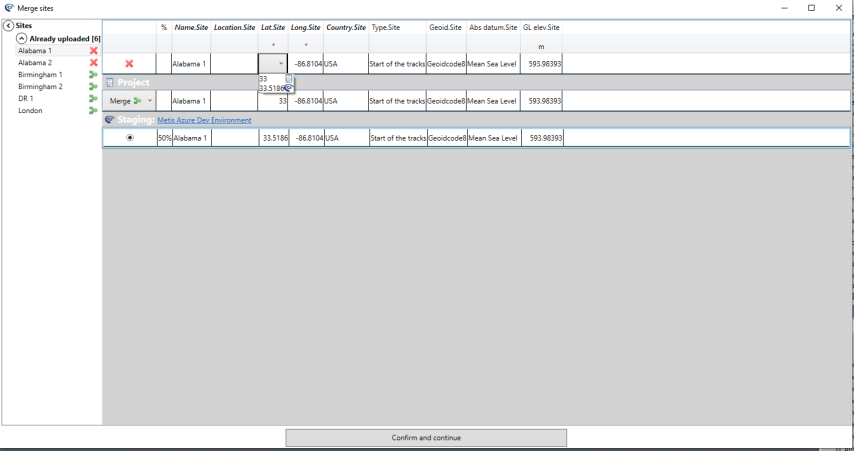
Once Transform has obtained the candidate matches, you are presented with a list of project sites. For each site you are shown whether it is a new site (green +), an existing site that merges without conflicts (green joining arrows) or merges with an existing site with conflicting values (red cross, shown above).
Clicking on each site provides a summary view, as illustrated above. This shows the values for the site properties in the project (row 2), the values for the site properties on Staging (row 3, and more if multiple matches are found, ranked by score, which is shown in the second column). Where multiple sites are returned from Staging the user can select which of the Staging sites to merge with. For sites with conflicting values in some of the properties the user must decide whether to retain the Staging value, or update this with the project value.
Once the conflicts have been resolved, the merge can proceed to the borehole merge process.
Borehole merge and upload
The borehole merge works in the following manner:
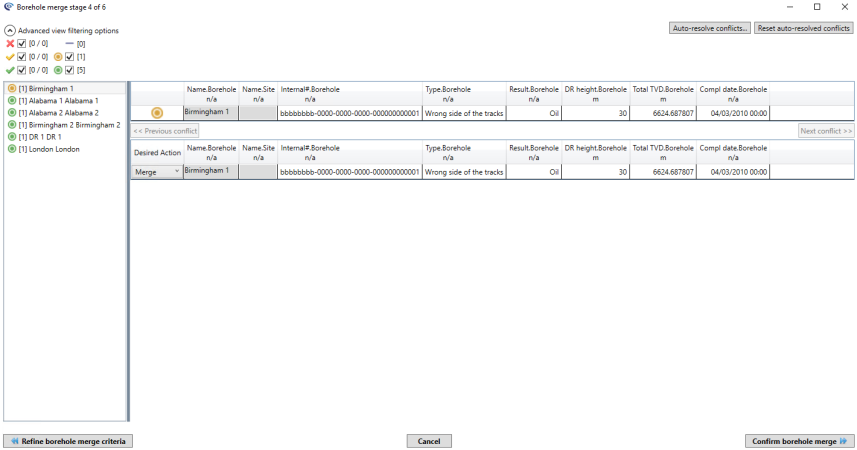
- For each project borehole we search within its associated site found on Metis for 'matching' boreholes if a site was present in the previous site merge. If a site was not present then all boreholes on metis are searched against to find matches that are similar to the project borehole and upon selecting a target to update on metis, the metis borehole remains associated with whichever site it currently is associated with on metis. Here matching is based on boreholes which are 'similar' on certain properties - for example the borehole name or other identifiers. An exhaustive list of the matching properties can be found here.
- For each matched borehole we calculate a matching score - this uses more properties to provide a numeric score in the range of 0 (no match) to 100 (identical). The scoring details can be found here.
- The matched boreholes are ranked, based on their score and up to the top 10 matches are returned.
Stratigraphy and trajectory upload
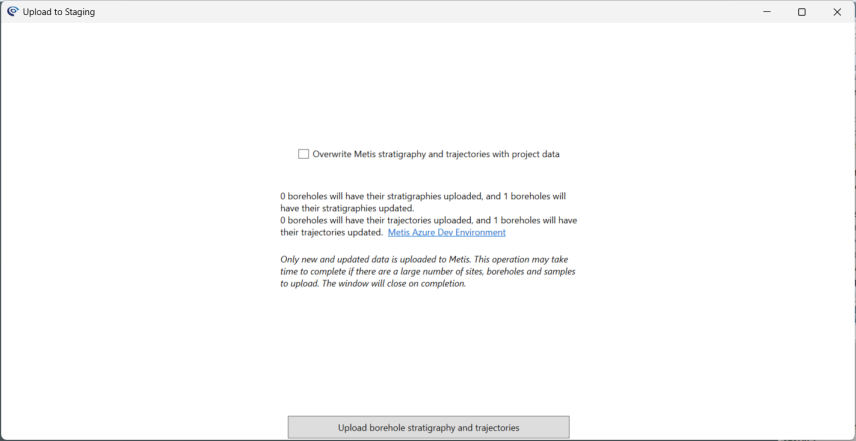
Once the borehole data has been uploaded new trajectory and stratigraphy data can be uploaded and changed data can be updated. There is a checkbox present that controls whether Metis trajectory and stratigraphy data is overwritten or not or just new data uploaded.
Sample merge and upload
borehole samples
When finding potential matches between samples associated with boreholes in the project and those on Staging we first ensure the samples are in the same borehole and then compare the sample name, depth, identity and type information. Details of the matching criteria for borehole samples can be found here.
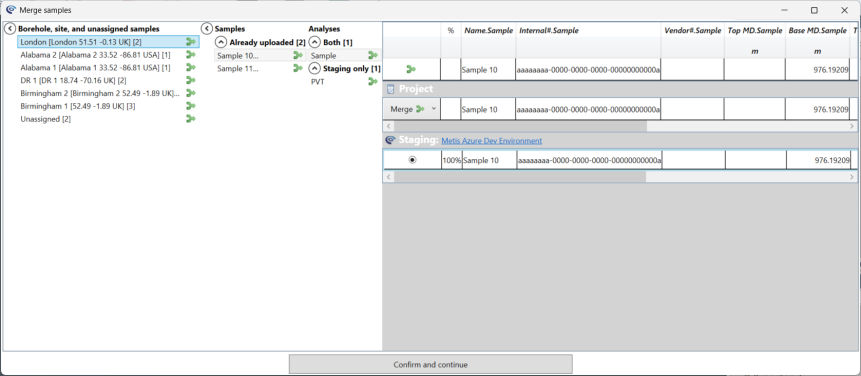
The user will be presented with options depending on the outcome of the matching and scoring in a manner similar to boreholes. In this interface the data from each borehole is loaded from Staging on demand, so there can be some delay when selecting a borehole. Once a borehole is selected all project samples from within that borehole are shown. Selecting a sample reveal the analyses for that sample, in both the project and Staging, on Staging only and in the project only (new data). A red cross indicates conflicts, and red no-entry symbol indicates the system needs more information to proceed, a green merge arrow indicates the system is ready to upload the sample, and a green plus means the sample is entirely new to the system.
Users will always be informed of the implication of all actions, especially any merge conflicts when attempting to merge samples / boreholes with differences in properties other than the matching criteria.
Non-borehole samples
The merging of non-borehole samples proceeds similarly, but the criteria are slightly different.
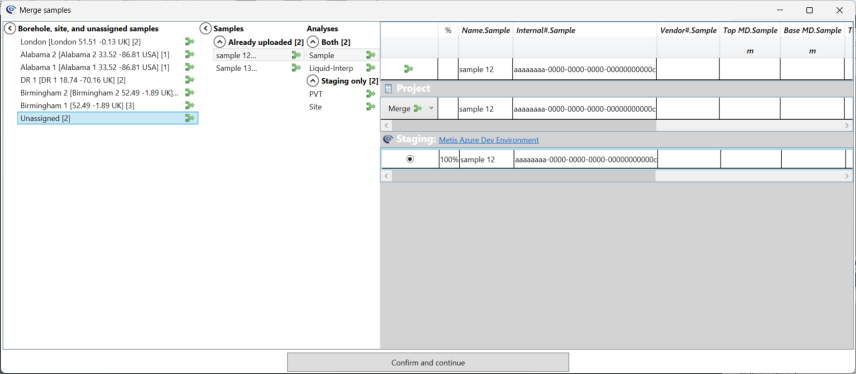
The potential matches are based on criteria outlined here.
The scores are calculated based on properties described here.
Again the user is presented with information and options to select how to upload the samples to Staging.
Once you are happy with the merges and uploads proposed select Confirm and continue. This will summarise the number of samples that will be uploaded. Note only those samples for which the conflicts have been resolved will be uploaded. Selecting Upload and close will upload the data, and close the wizard. Note that uploading large numbers of sites, boreholes and samples can take some time.
When a sample is uploaded, that sample will be removed from the project (this can be undone, although the uploaded data cannot be removed using undo). If all samples from a borehole are uploaded the site and borehole will also be removed from the project. This allows you to incrementally upload data in a project.
© 2026 Integrated Geochemical Interpretation Ltd. All rights reserved.