
How to export sample and well data from p:IGI+
You can export sample or well data from your p:IGI+ project in Excel (.xlsx) or p:IGI+/Transform import (.zip) format.
Exporting sample data
Step 1: Open the sample data export menu
- Go to Project
 Export samples…
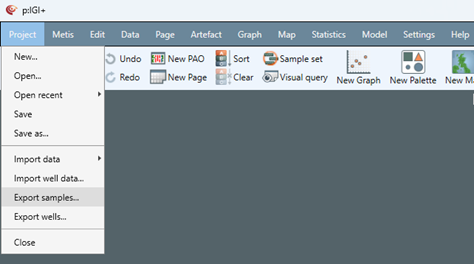
Step 2: Configure export options
- Choose which properties to include in your export:
- All properties with data exports every property that contains data.
- Properties selected based on one or more pages exports only properties from the selected page/s.
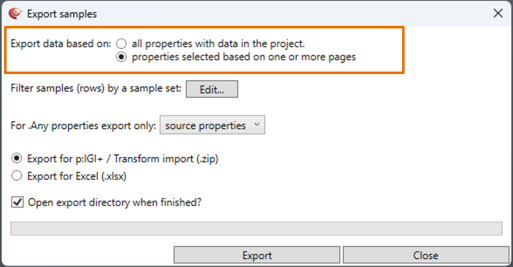
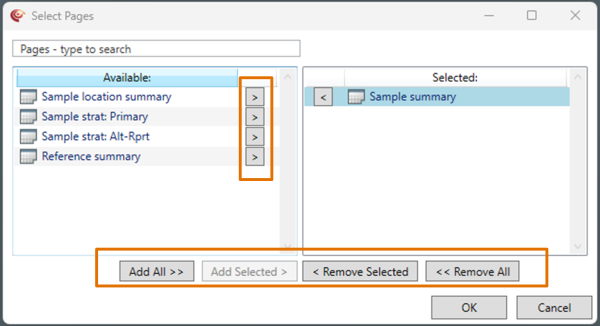
If you choose properties selected based on one or more pages, select pages in the dialog box:
- Move pages from the Available column to the Selected column using the arrows or the add/remove buttons.
- Click OK to confirm
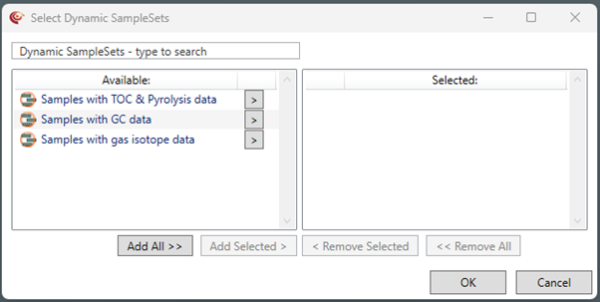
- Choose which samples to include in your export:
-
- If no action is taken, all samples in the project will be included in the export
- If a subset of samples is needed, click Edit… and select the relevant sample set/s.
Step 3: Choose export format
- Select one of the following:
-
- Export for p:IGI+/Transform import (.zip) for import into a p:IGI+ or Metis Transform project.
- Export for Excel (.xlsx) for review or analysis in Excel.
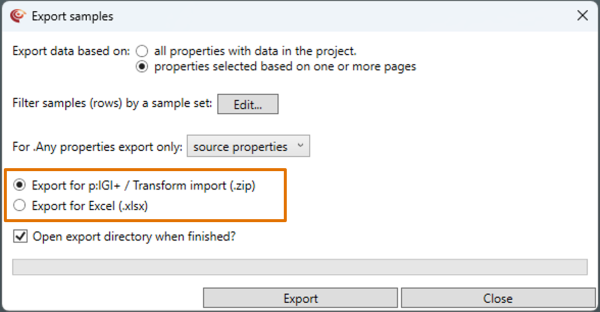
- Tick Open the export directory when finished? if you want the chosen File Explorer folder to open automatically once the export files are ready.
- Click Export, then choose where to save the file.
Exporting well data
Step 1: Open the well data export menu
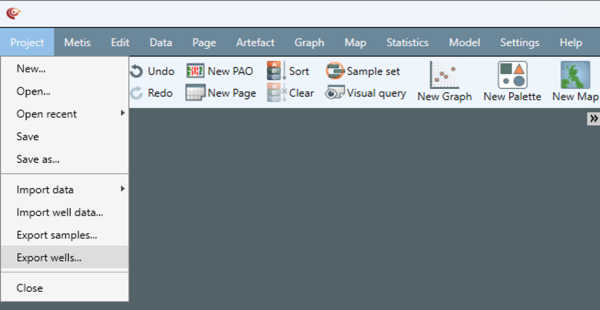
- Go to Project Export wells…
Step 2: Complete the export
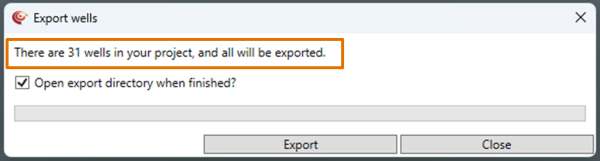
A message shows how many wells are in your project.
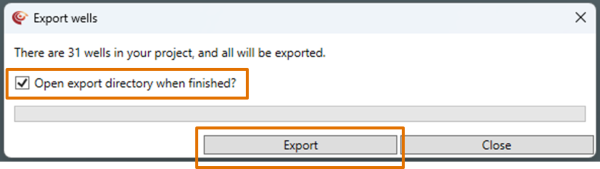
- Select Open the export directory when finished? if you want the chosen File Explorer folder to open automatically once the export files are ready.
- Click Export, then choose where to save the file.
1.
i
© 2026 Integrated Geochemical Interpretation Ltd. All rights reserved.