How to import sample data into p:IGI+ v3 from Metis
Sample-level data can be imported into p:IGI+ from various sources and file types. The simplest method is to use the built-in Metis database connection to link to either an IGI-hosted public geochemical database or a private company geochemical database.
Note: It is important to ensure you are using the same version of p:IGI+ and Metis to successfully make the connection.
Importing data via a Metis link
Step 1: Connect to Metis
- Go to Settings à Edit settings… from the software’s top menu bar.
- In the Settings window, select the Metis tab.
- Select the Link to radio button for your desired Metis server, and then click Sign in.
- Enter your login credentials.
Your name will appear under the Signed in as header once you are connected.
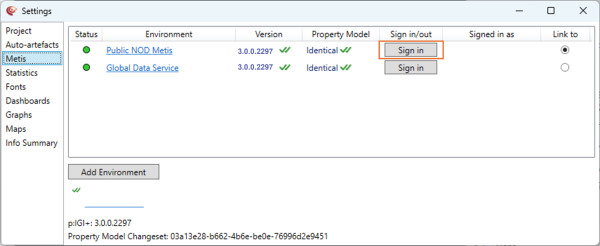
Step 2: Create a Metis Link
- Go to Metis à Create Metis link… from the software’s top menu bar.
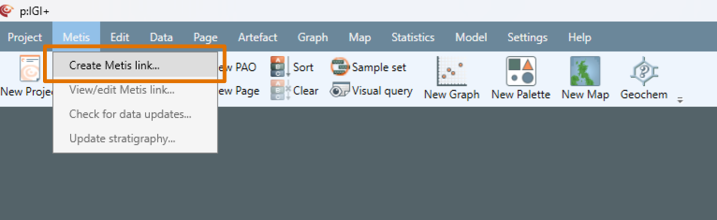
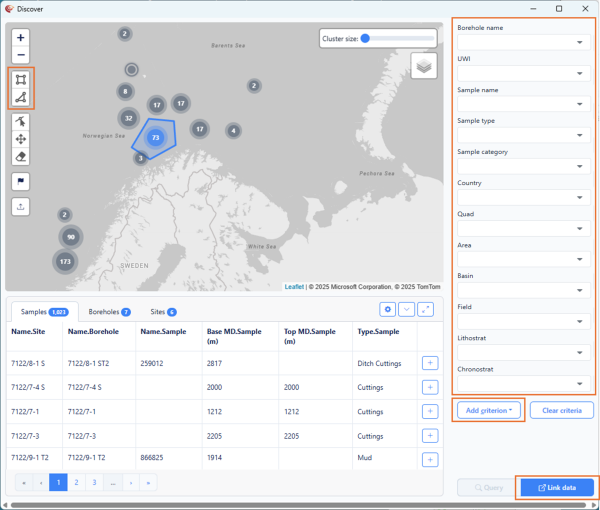
This opens the Metis Discover interface.
2. Query data using:
- the polygon select from the map
- the quick search fields presented to the right of the map
- the Add criterion menu, gaining access to the whole property model
Step 3: Import geochemical samples to p:IGI+
- Once geochemical data has been discovered, click Link data.
- Wait for the progress bar to show ‘Completed’.
A summary of linked samples, boreholes and sites will appear.
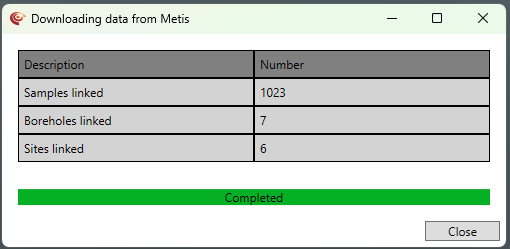
- Close the window. Your data are now imported into p:IGI+. A new static sample set will be generated containing all the samples imported. Any new sites and boreholes generated will also appear in the Sites and boreholes manager.
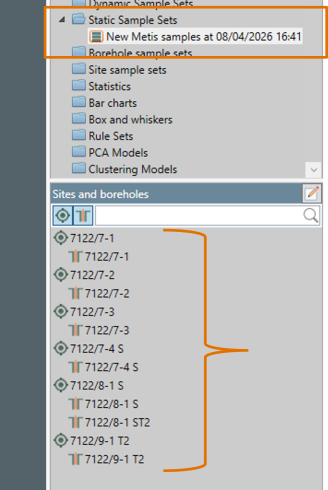
Note: The imported data from Metis is linked through to p:IGI+. This link records both the sample IDs and the search query. A user can therefore check for updates to samples or view/edit the Metis link in the future. Both actions are available from the Metis menu.
© 2026 Integrated Geochemical Interpretation Ltd. All rights reserved.